Set Up Azure Single Sign-On (SSO)
- Permission to manage Single Sign-On App Insights. Learn more about permissions.
Overview
As a Workspace Admin and a Enterprise-level Randoli subscriber, you can set up Azure SSO to provide access for users within your organization, ensuring secure and streamlined authentication across Randoli App Insights.
Set Up Azure SSO
To set up Azure single sing-on:
-
Login to Randoli App Insights.
-
Navigate to the SINGLE SIGN ON page using the left navigation bar.
-
Click on the Configuration tab.
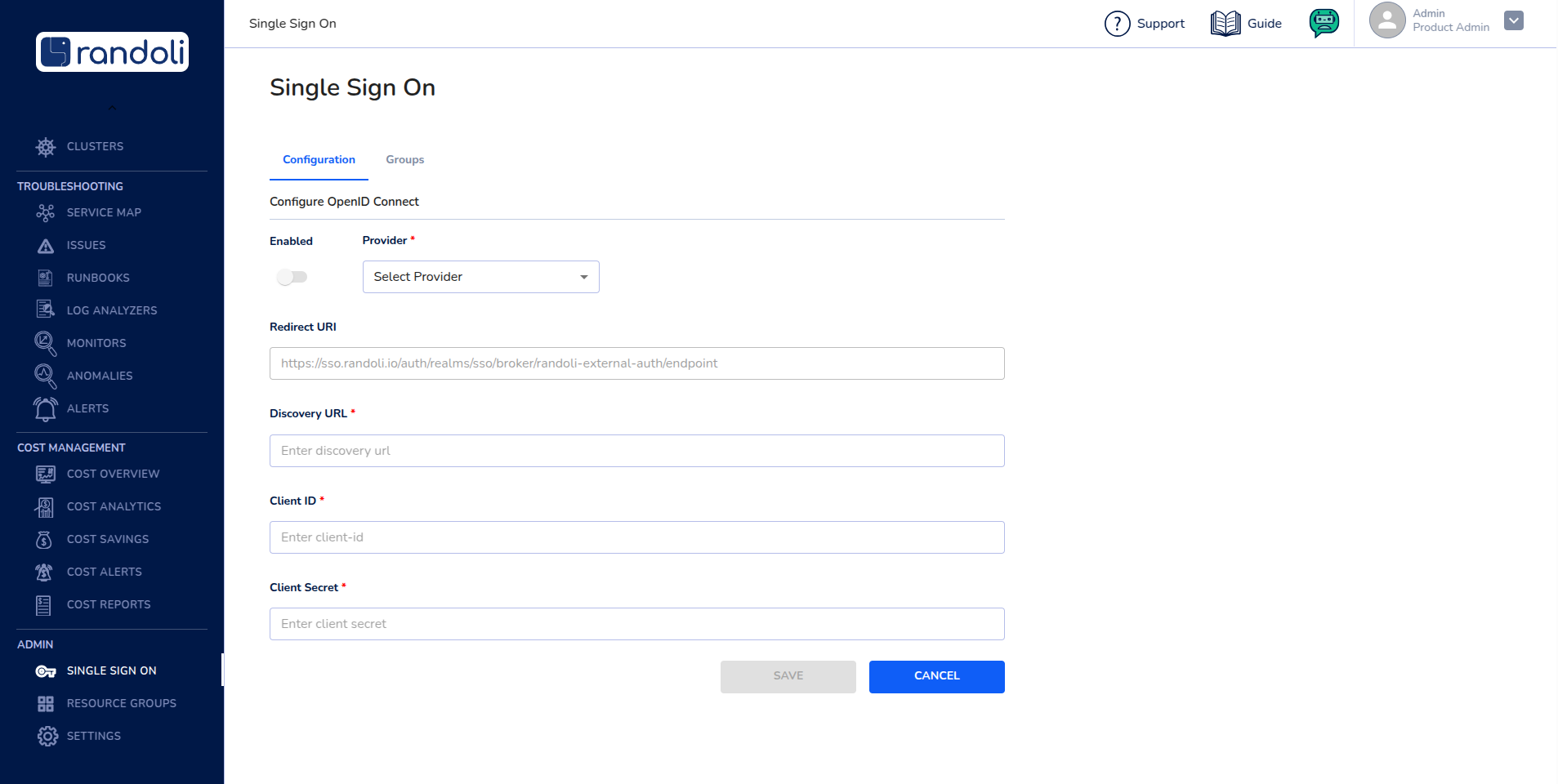
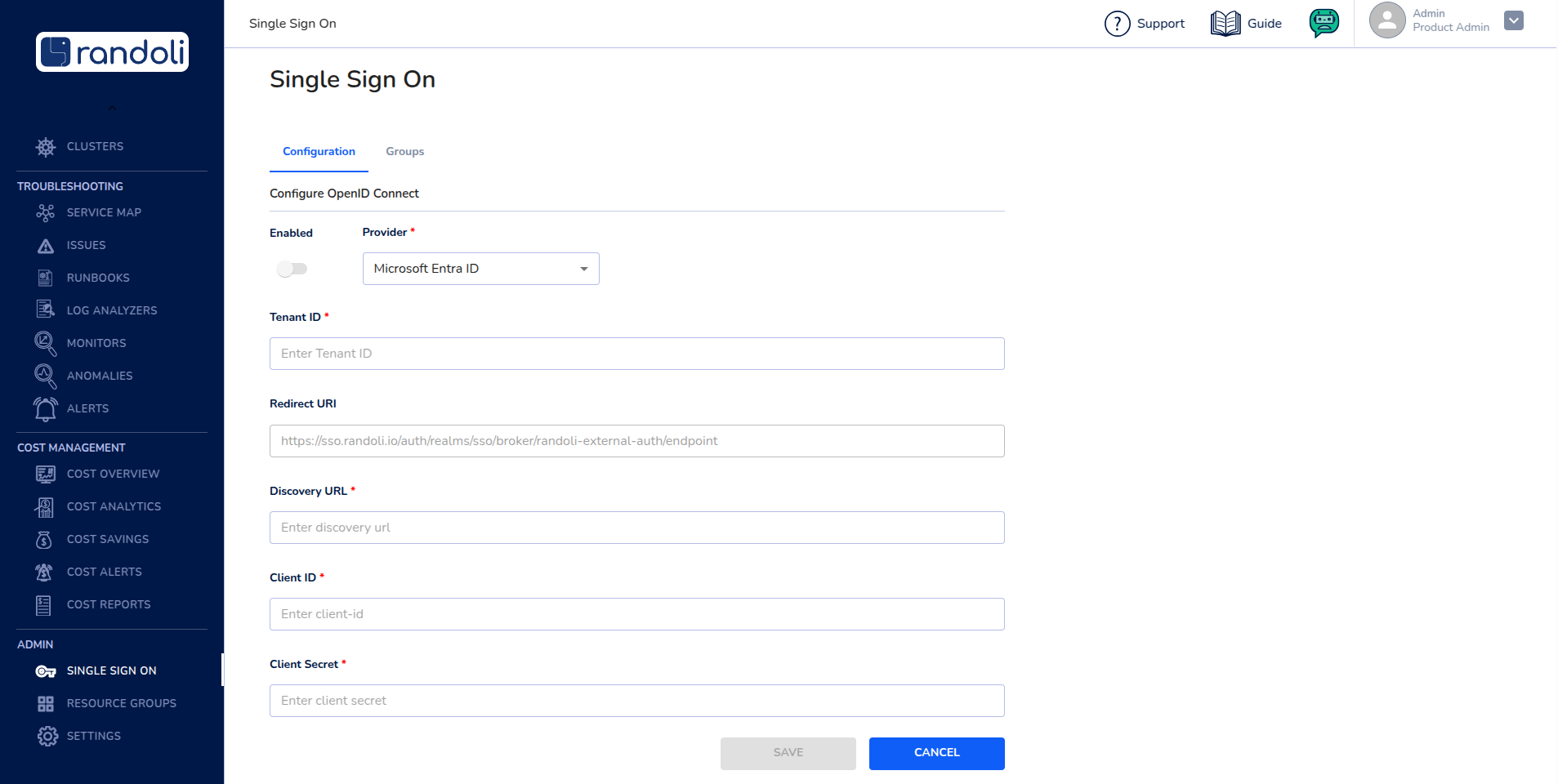
- In the Select Provider dropdown, choose Microsoft Entra ID as the identity provider.
-
Complete the following fields with the relevant Azure configuration details:
-
Tenant ID: The Azure Tenant ID.
-
Discovery URL: The Azure Discovery URL.
-
Client ID: The Client ID generated in Azure AD.
-
Client Secret: The Client Secret associated with the Azure application.
-
-
Click on the SAVE button to save the Azure SSO configuration.
-
Toggle the Enabled switch to enable Single Sign-On.